Scanner Configuration
- Modules: Scanning
- Enhances: Concessions, Incentivization, Physical Access Control
Overview
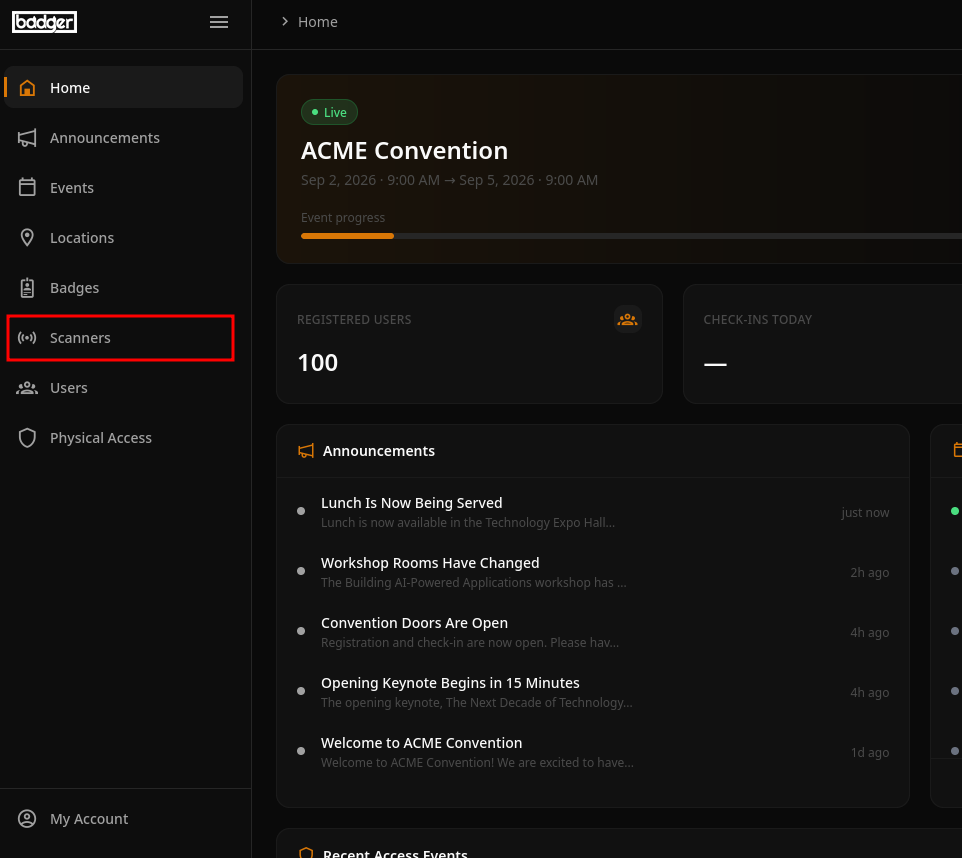
You can configure a Scanner by going to the "Scanners" page on the side navigation bar of your Event Management Interface (EMI).
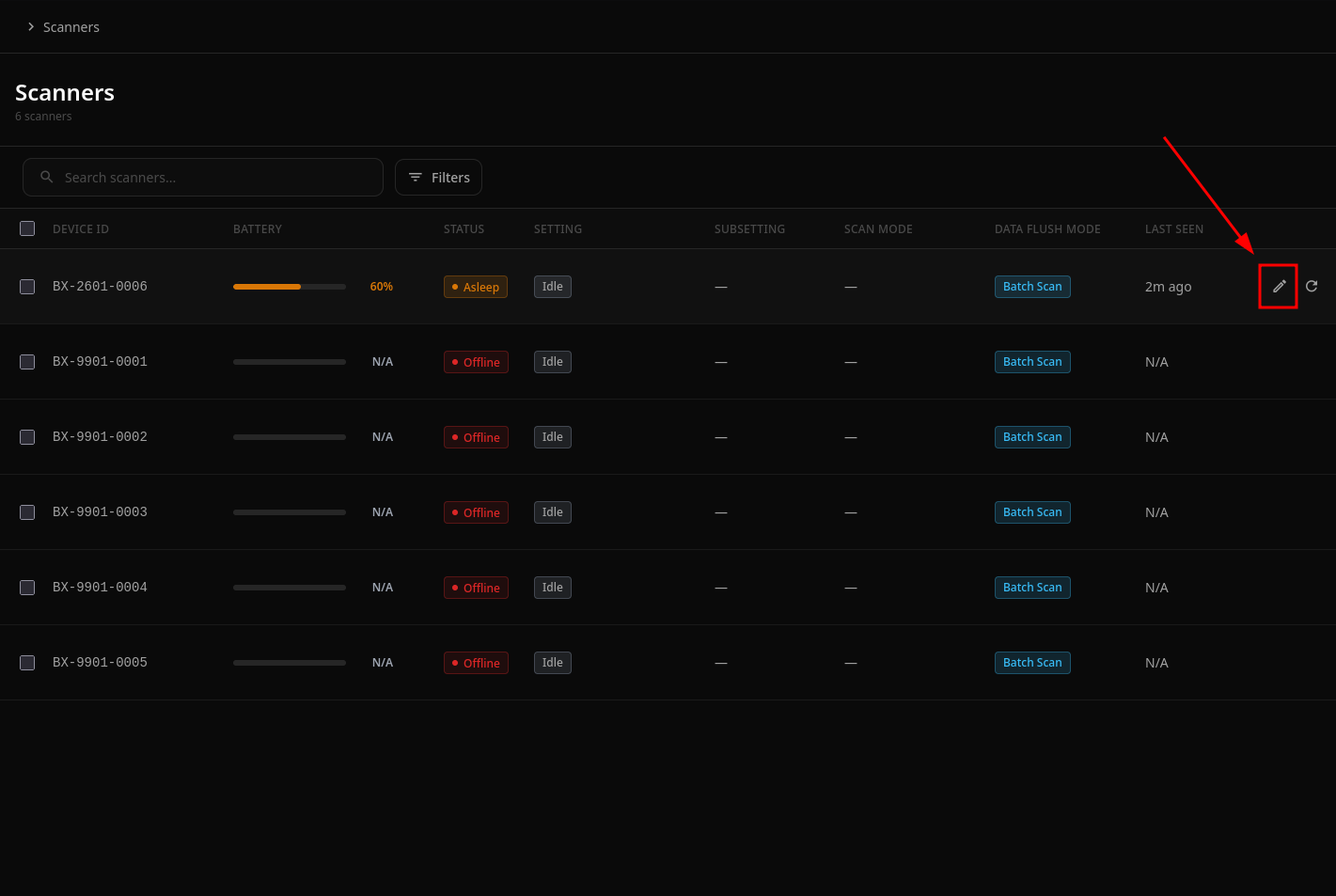
Select the Scanner that you wish to configure by selecting its row and selecting "Edit" from the drawer menu, or by hovering over the row and selecting the "Edit" icon at the right-hand side of the page.
You can now configure your Scanner's settings from the Edit menu.
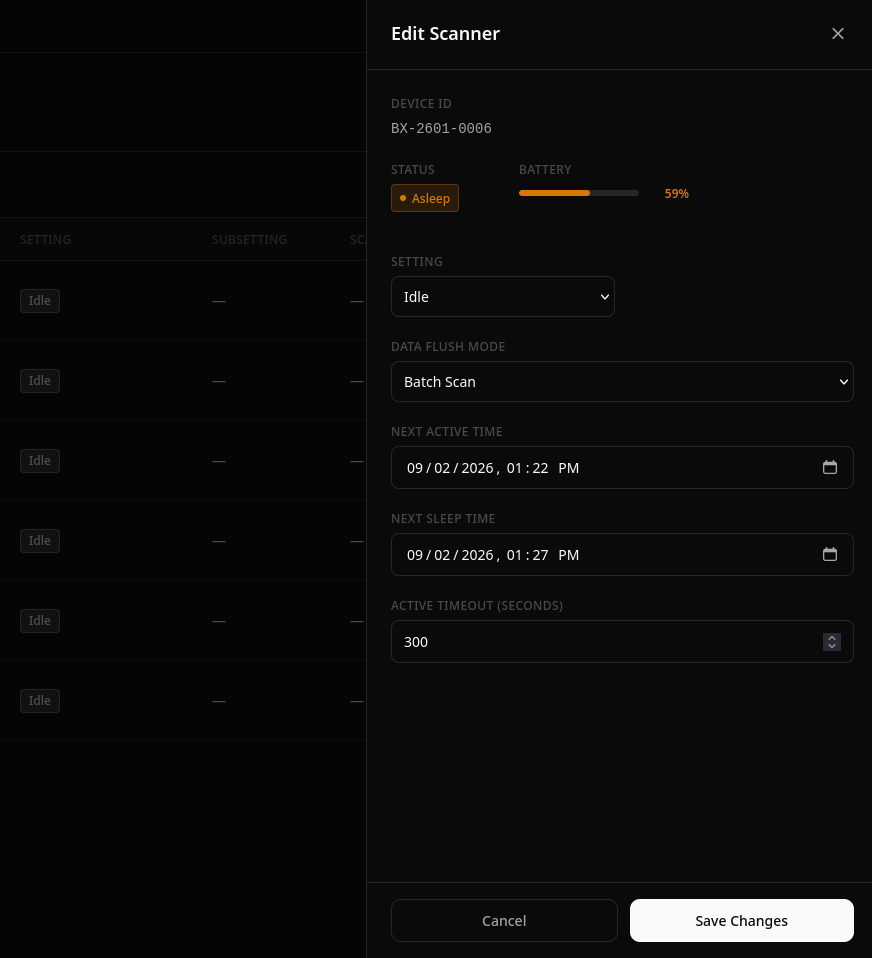
To learn more about the lifecycle of a Scanner, please see Scanner Devices.
Forcing Local Database Refreshes
Scanners maintain local allow-, pending-, and deny- lists in memory to provide immediate feedback to users upon scanning. When changes are made that may affect these lists, such as Group membership changes, it may take time for the Scanner to detect the update and download its new lists.
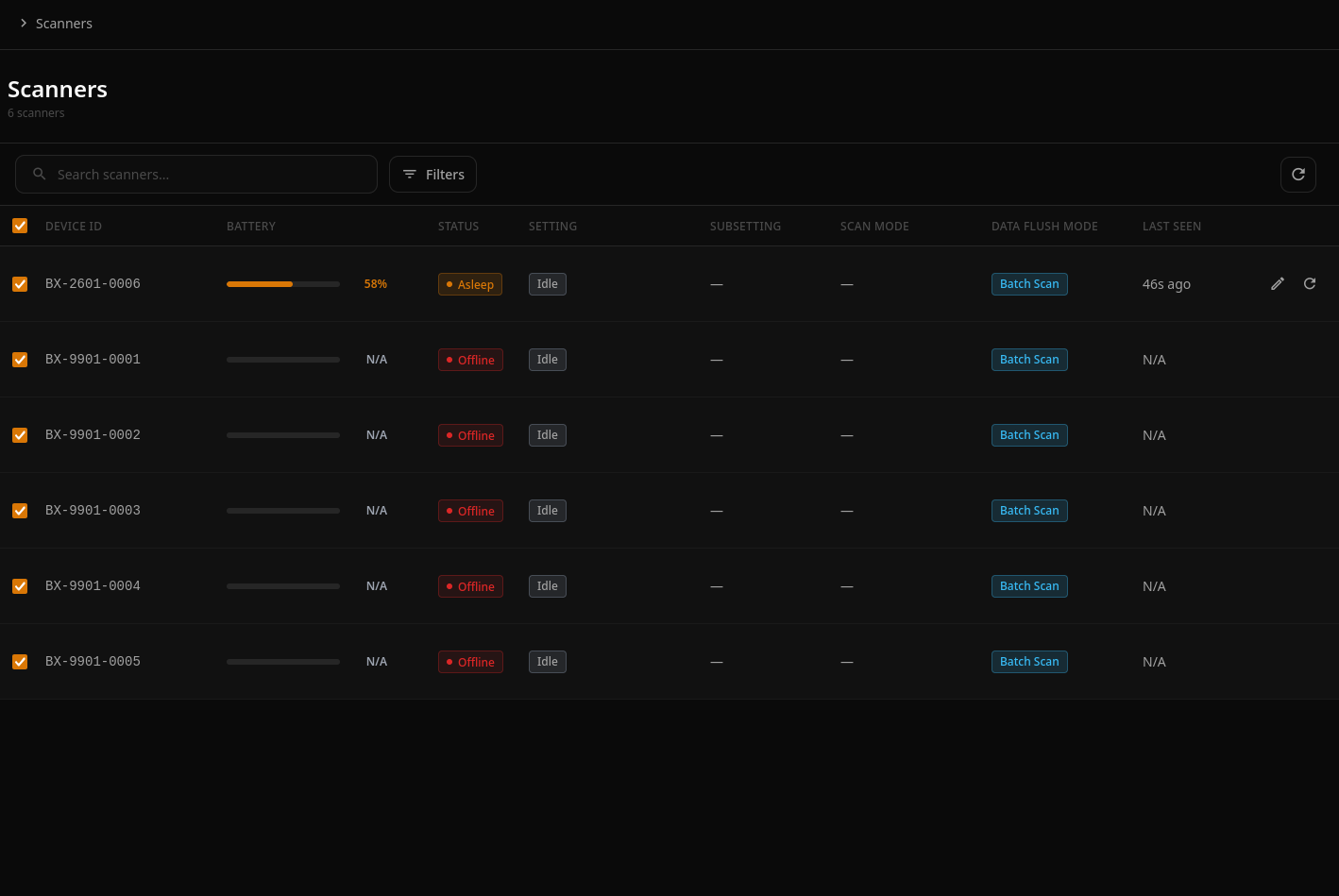
You can force the Scanner to download a new list upon its next polling cycle by clicking the "Refresh" button.
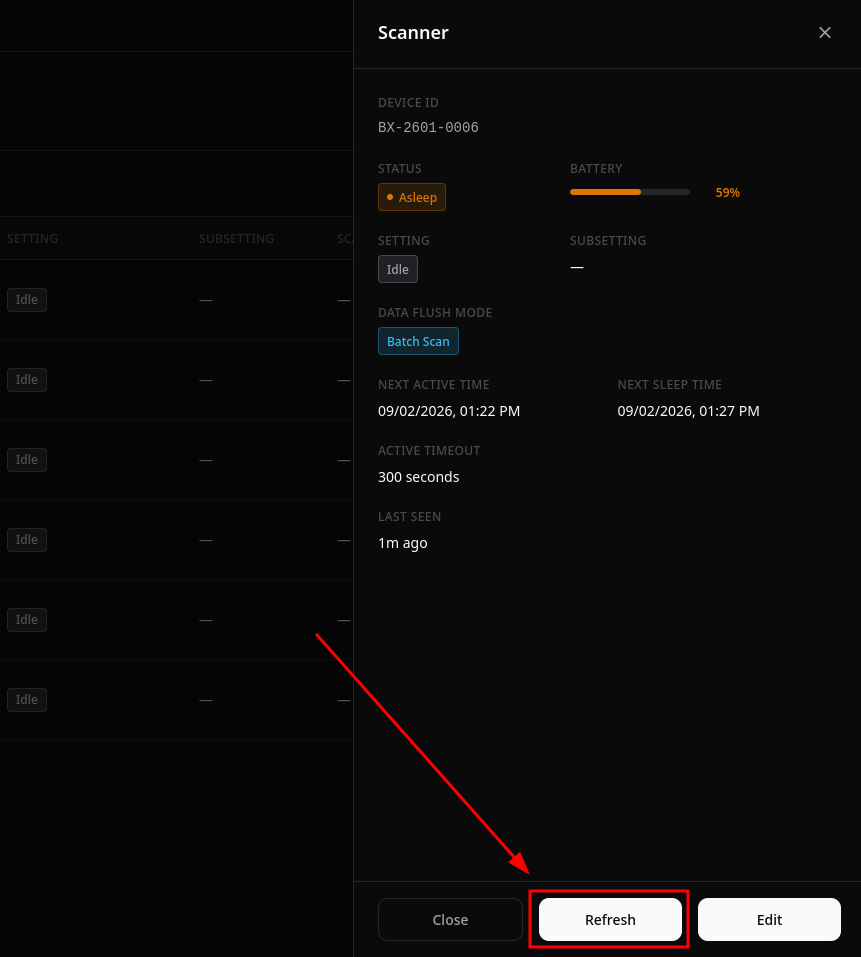
You can also do this in bulk by selecting multiple Scanners and clicking the "Refresh" icon at the top right-hand side of the page. You can also quickly do this for single Scanners by hovering over the row and selecting the "Refresh" icon at the right-hand side of the page.